We need your help to keep this website free. You can
References pointed to sections that were no longer visible. I wasn’t trying to recover confidential details. I needed to know whether the document itself was reliable. That’s when I started asking whether redaction always means removal, or if sometimes it’s just a visual layer placed on top of the original content. That question ended up shaping how I think about redacted PDFs altogether.
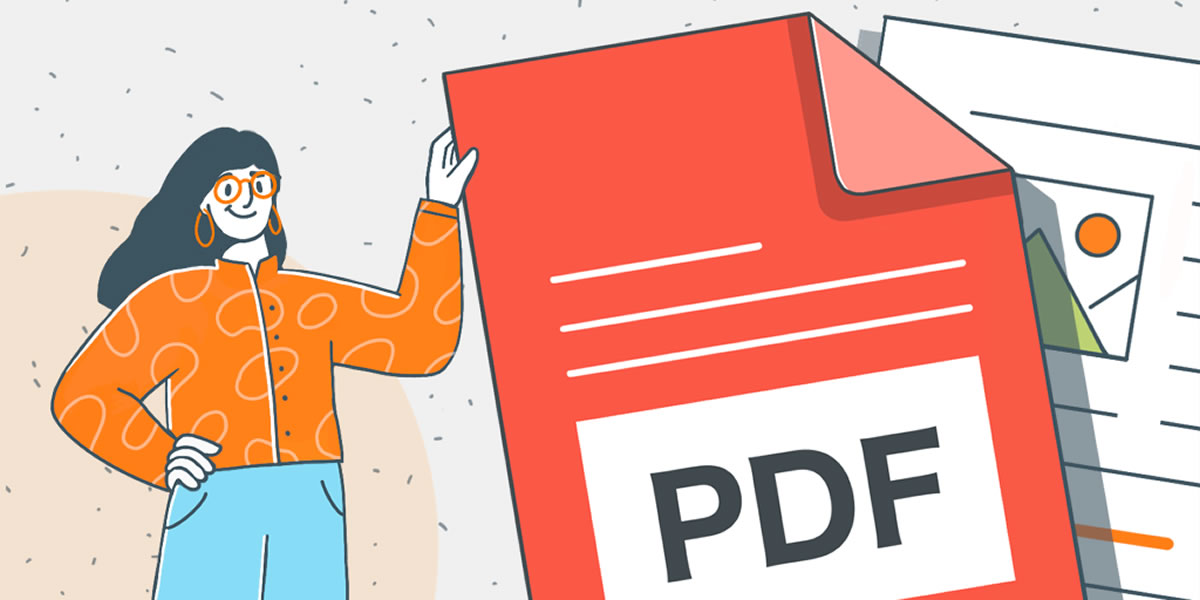
The First Thing I Learned About Redacted PDFs
I assumed redaction meant removal. That assumption didn’t last long.
After opening a few different files, I noticed something odd. Some redacted areas behaved like objects. Others didn’t respond to clicks at all. That difference turned out to matter more than anything else.
Redaction comes in two forms, even though most people treat it as one. One version removes content. The other only hides it. The problem is that both look the same once the document is shared.
A Simple Check That Changes Everything
Before trying how to unredact a PDF, I now do a quick check. It takes less than a minute and tells me whether anything can be recovered.
Here’s what I do.
1. Open the PDF in a viewer that allows text selection.
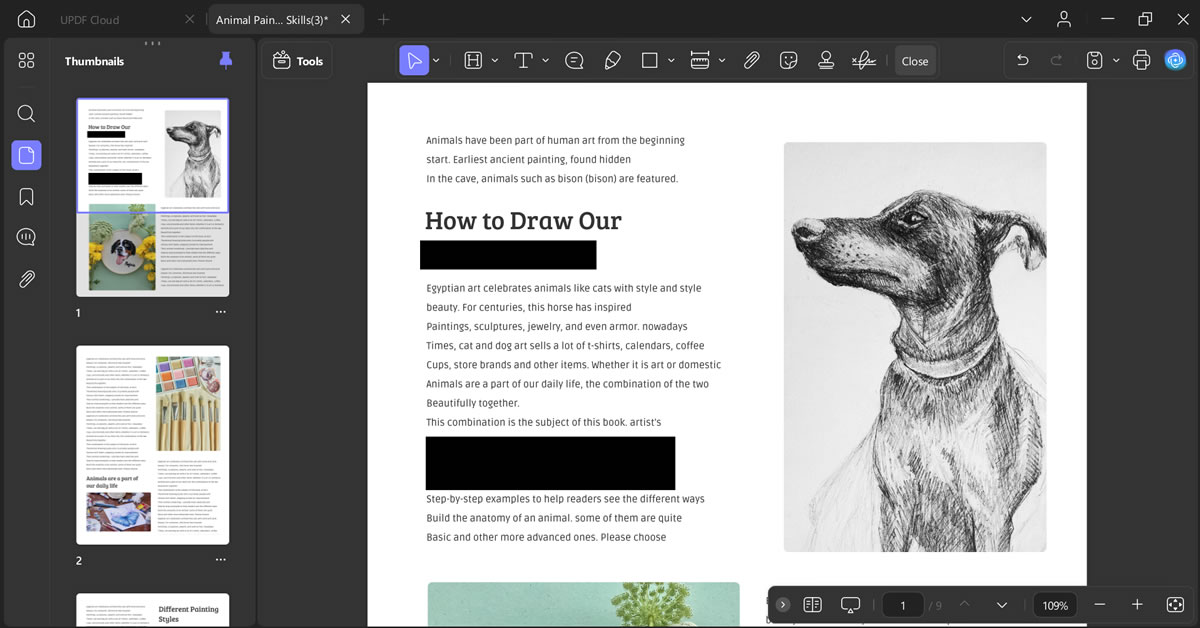
2. Drag the cursor across the blacked-out area.
3. Copy whatever is selected.
4. Paste it into a blank text file.
If text appears, the document was never securely redacted. The content still exists. If nothing appears, the redaction was done properly, and there’s nothing to uncover.
That single test prevents wasted effort and false expectations.
When The Text Is Still There
If the text shows up during that copy test, the redaction is only visual. The document looks protected, but it isn’t. This is where people usually start asking how to unredact a document.
At this point, the goal isn’t hacking or breaking encryption. It’s removing layers that were added on top of the content.
How I Deal With Visually Redacted PDFs
I use UPDF for this work because it lets me interact with the structure of the PDF, not just the surface. I already relied on it for editing and annotations, so it wasn’t a stretch to use it here.
Once the file is open, I don’t rush into deleting anything. I check what kind of element is covering the text.
What I Look For First
1. I open the PDF in UPDF.
2. I switch to Edit mode.
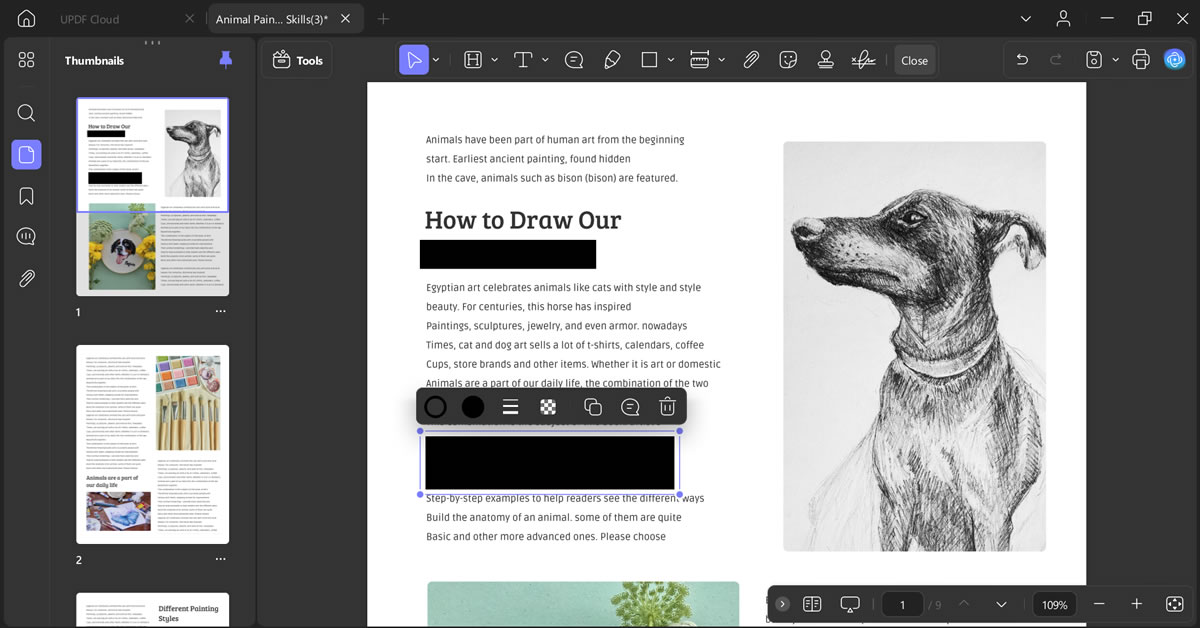
3. I click directly on the black area.
If it highlights as a shape or markup, that’s my signal. The text underneath hasn’t been removed.
Removing Overlays One At A Time
In smaller documents, redaction is often applied inconsistently. One page might use highlights. Another uses rectangles. In those cases, I remove them manually.
The process is simple.
1. Stay in Edit mode.
2. Select the black overlay.
3. Press Delete.
4. Click elsewhere to refresh the page view.
Sometimes the text appears instantly. Other times it takes a slight zoom or scroll. Either way, if the content was only covered, it comes back.
When The Same Redaction Is Used Everywhere
Large documents introduce a different problem. Redaction is usually applied in bulk. Same style, color, and shape across dozens of pages.
Manually removing each one is impractical.
In those cases, I rely on bulk removal tools.
To remove text-based markups:
1. Open Edit mode.
2. Go to Tools and choose Remove.
3. Select Text Markup.
This clears all text markups at once.
For shapes instead of markups:
1. Stay in Edit mode.
2. Select all elements on the page.
3. Deselect anything that should remain.
4. Delete the rest.
This is where UPDF saves time compared to basic viewers.
Working With Redacted PDFs On Mobile
I don’t like getting rid of redaction using a phone, but UPDF makes this whole process very simple and feasible to follow:
When that happens, the steps change slightly.
1. Open the UPDF app.
2. Import the PDF from storage or the cloud.
3. Switch to Draw mode.
4. Enable object selection using the Hand icon.
5. Select the black overlays.
6. Remove or adjust them.
This only works if the text was never deleted. Mobile tools can’t recover content that’s already gone.
When Nothing Works
At some point, you will open a PDF where none of this applies. Nothing highlights. Copying does nothing. The blacked-out areas behave like empty space. That’s not a failure. That’s real redaction.
Why Some Documents Cannot Be Unredacted
When redaction is done correctly, the text is removed from the file entirely. It doesn’t sit behind a layer. It doesn’t exist in metadata. It isn’t recoverable. No software can restore it. If someone claims otherwise, they’re misunderstanding what redaction means. Fake Redaction vs. Real Redaction
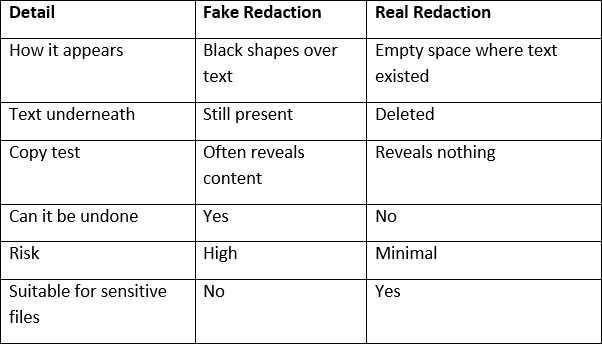
Seeing this difference changed how I handle documents entirely.
How I Handle Redaction Now
Once I understood how easy fake redaction is to undo, I stopped using it altogether.
When I redact documents myself, I want certainty. I want to know that nothing can be recovered later. UPDF’s redaction feature removes text instead of hiding it. I can preview changes before applying them, which prevents accidental deletions. That extra step matters.
Why I Still Use UPDF
I tested other tools. Some were free. Some worked online. Most felt risky or limited, especially when dealing with sensitive information.
UPDF works because it treats PDFs as structured files, not flat images. Editing, redaction, conversion of PDF, and review all happen in one place. For regular document handling, that consistency matters.
Wrapping it Up!
Learning how to unredact a document forced me to rethink what redaction actually means. If text can be recovered, it was never protected. Once I accepted that, I stopped trying to undo redaction and started doing it properly from the beginning. UPDF helped me understand the difference and gave me a reliable way to handle documents without second-guessing what’s hidden and what’s truly gone.