We need your help to keep this website free. You can
It is in the business environment where giving a powerful presentation can count. It does not matter whether you are selling a new product, reporting quarterly, or giving a keynote speech; the success of your presentation will depend on how successful your message is and how much you engage the audience. Producing concise, interesting, and beautiful presentations, however, may be time-demanding and difficult. Luckily, the AI Writer and AI Storyboard of CapCut are there to revolutionise the way you make your presentations, as the AI Shortcuts make preparing your presentation faster, more effective, and creative.
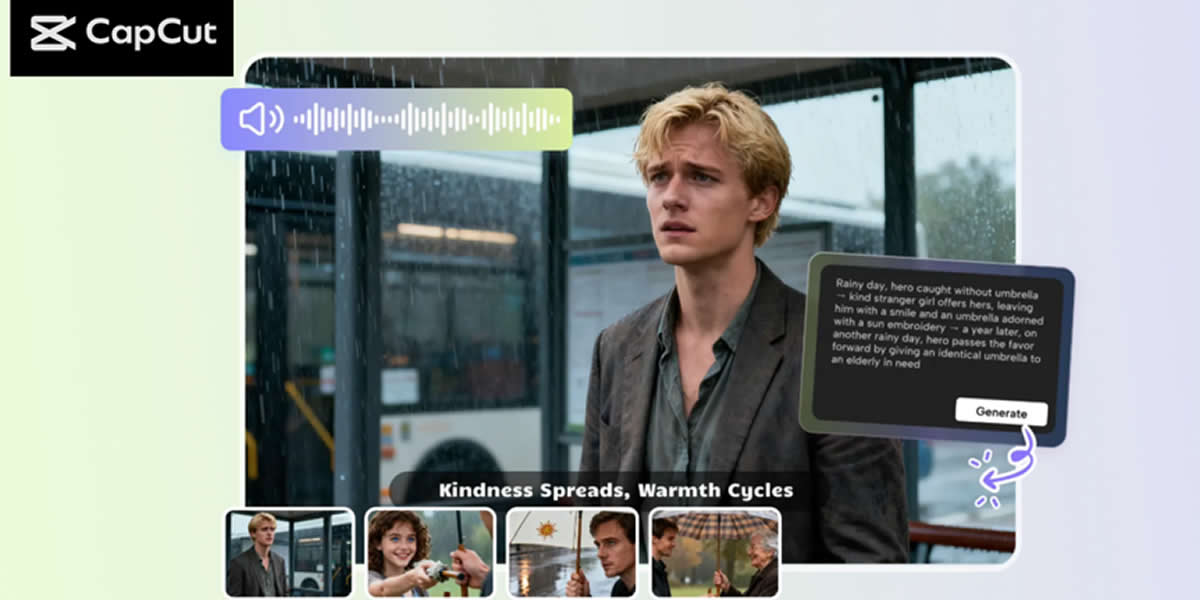
This article will discuss how CapCut AI Writer and AI Storyboard can be used to make a speech more effective and coherent so that the audience can fully follow the narrative.
Why AI Tools Are Essential for Effective Presentations
Overcoming Content Creation Challenges
Preparation of a presentation does not only include collecting data; it also includes presenting information in a well-organised, engaging, and understandable way. To most speakers, creating a good storyline and script that flows and appeals to the audience can be a problem. This can be relieved by CapCut AI Writer, which can produce a script at a glance that is in tandem with the topic, tone, and key messages of the presentation. The tool can be used to overcome writer's block, simplify the content creation process, and make the presentation coherent up to the end.
Visual Planning for Impactful Presentations
The message itself is not what a good presentation is all about; it is how the message is presented visually. Storyboarding is necessary to make sure that the images have something to say. Through CapCut AI Storyboard, speakers will have the ability to see how every slide and visual representation will appear, thus causing the content and the images to turn into a harmonious flow. AI Storyboard can give a clear course on the appearance of the final presentation, starting with the structuring of the slides and further on with transitions.
Step-by-Step Guide to Using CapCut AI Writer and AI Storyboard for Presentations
Step 1: Brainstorm and Create Your Script with AI Writer
First, open CapCut and from the main interface, choose the option of the AI video maker. This will bring you to the workspace where you can begin using AI Writer.
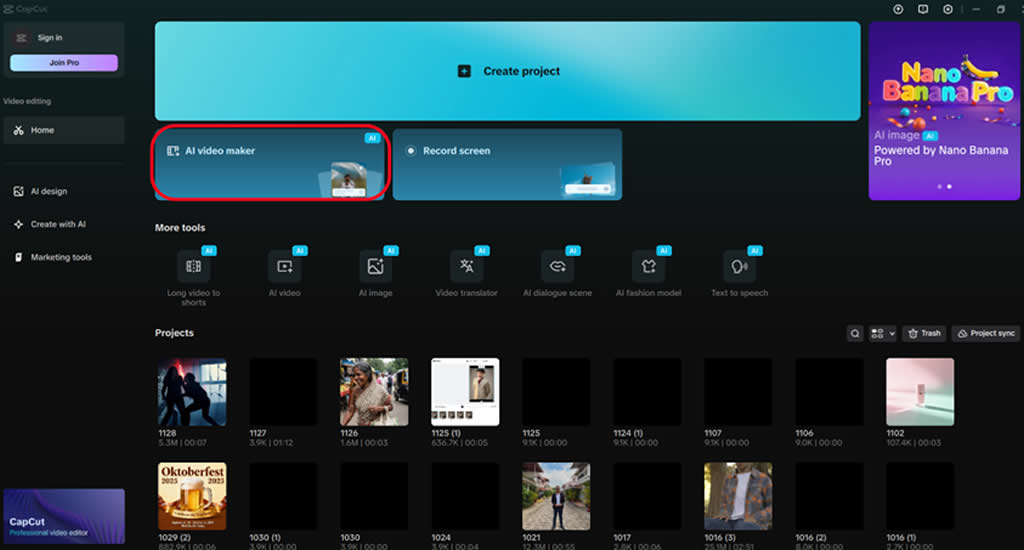
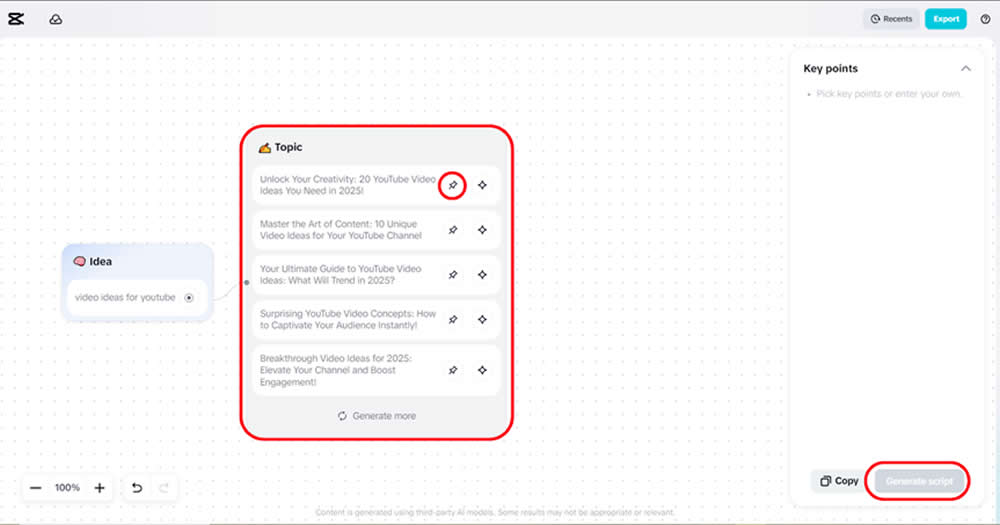
When you go to the tool, type in Brainstorm with AI and add the main theme or topic of your presentation: a product presentation, corporate update, or inspirational presentation.

Artificial Intelligence will create a list of topical topics and ideas. You may either pick one that sounds with your message, or you may go by clicking Explore to add more options. After choosing your topic, the AI writer will automatically create some of the most important points, which will make up your script.
Step 2: Generate and Customise Your Presentation Script
After picking your topic, the AI writer will write your full script of the presentation. This will open up a window where you can further customise the script to suit your needs.
Choose how long you want to speak, whether it is a 10-minute briefing or an hour-long keynote. The tone of the script (i.e., formal, motivational, conversational) can be changed as well, and it is possible to include more specifics (i.e., highlight the benefits of the product, use industry statistics). When you have finished with the script, click on the button Generate to generate the contents.
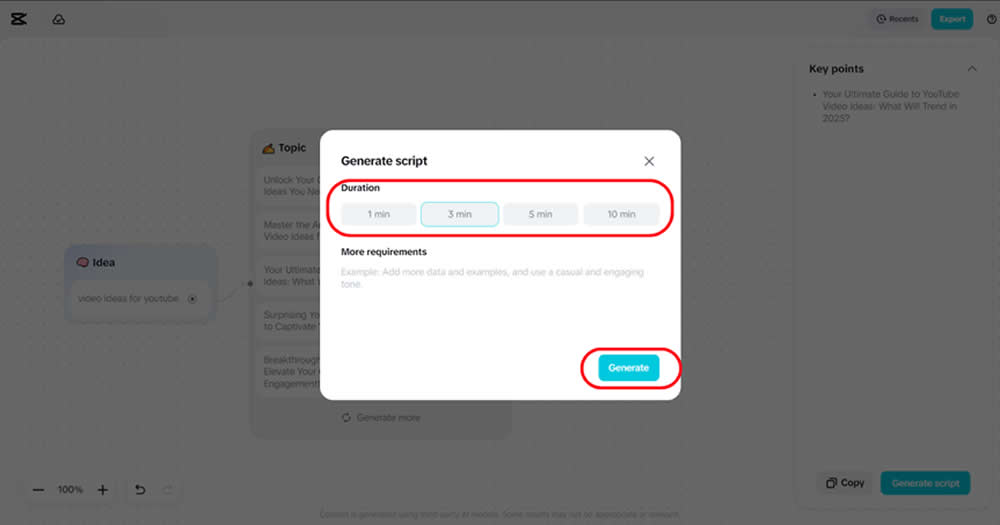
In case you are satisfied with the results, make a Use click. Otherwise, you may repeat the process by clicking on Create or Cancel to restart all over again.
Step 3: Visualise Your Presentation with AI Storyboard
Once the script has been generated, it is time to see how the presentation will appear. Open CapCut once again and choose the option of the AI video maker. Next, select the feature of the Instant AI video.
The video style (clean, minimalist, etc.) can be changed to suit the tone of the presentation. CapCut AI Storyboard provides options of sleek and corporate style or a more interesting and colorful design, in case you are interested.
Then either upload the script or use AI Storyboard to create it. After that, make the voiceover personal, as necessary, and adjust the length to the length of the presentation. When you are satisfied, you can create the visual storyboard by clicking on Create.

Step 4: Refine and Edit Your Presentation
After generating the visual storyboard, you can fine-tune it.
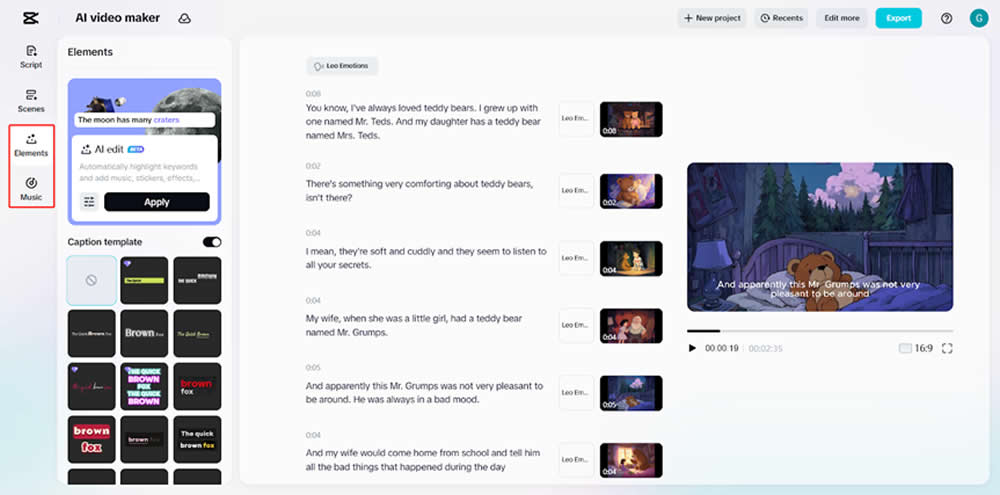
On Elements, you have the option of adding captions, graphics, and text animations, which will accompany the presentation content. In this way, you will make your presentation more lively and interesting to your audience.
Under the Music section, you have the option of choosing the background music to be used in your presentation to help you get the mood and tone. You can search in various genres of music and pick out a song that would be in line with the style and mood of your presentation.
Step 5: Export and Present
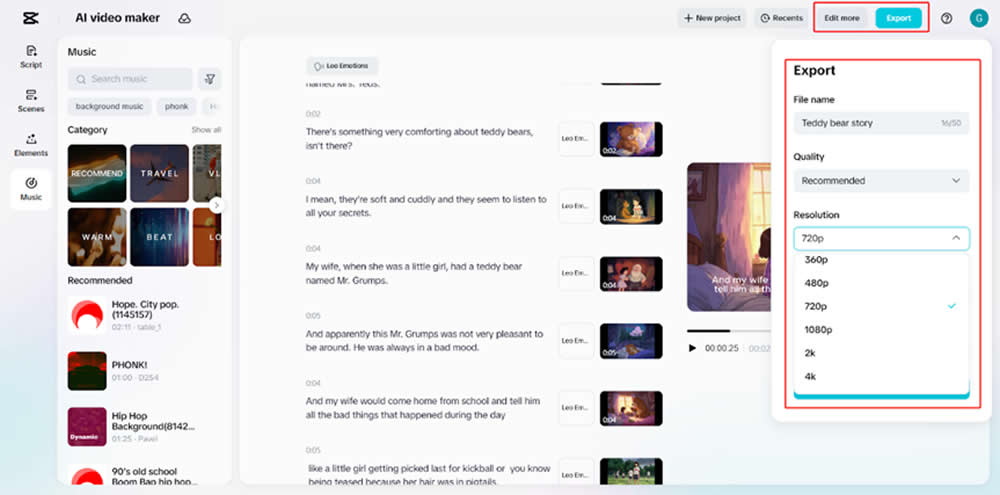
When you are happy with your storyboard and script, you can export and complete the video. You will be able to name the file, select the video resolution (up to 4K), and finalise the settings.
To make more custom adjustments, all you need to do is click Edit more, and you can use the advanced editing features of CapCut.
Conclusion
The AI Writer and AI Storyboard by CapCut are the tools that can help you improve the process of making a presentation. These tools can enable you to make engaging, professional, and visually stunning presentations using less time by automating your scriptwriting and visual planning. These tools can be utilized to create a more powerful presentation that will make an impression on the audience, whether you are about to give a product pitch, an educational session, or a motivational keynote. Begin using CapCut AI Writer and AI Storyboard and take your presentation to an entirely new level!