We need your help to keep this website free. You can
Your startup has a clear offer, a landing page, and a person who could represent the brand. The next ad is waiting for someone to record it. A different opening sounds like a small request, until you try to fit another shoot around everybody's other work.
Character-led clips can begin with a movement, a script or a drawn character. A talking avatar will not necessarily reproduce a particular physical performance. The useful starting point is to decide what the person on screen needs to contribute. Then choose a tool that addresses that specific gap, rather than paying for several overlapping subscriptions.

AllinOneDownloader original editorial scene of a founder preparing a character-led social video.
Decide What Your On-Screen Character Needs to Do
For a small brand, a character can be a recognizable human-style spokesperson rather than a cartoon mascot. Consider a consumer-app startup preparing short social ads. It already has an approved portrait and permission to use the person's likeness. One creative concept depends on a movement; another needs someone to explain the offer.
Five Tools for Different Character-Led Ad Jobs
The five options below are organized around those decisions. They are not a claim that one platform produces better advertising results than another, and you do not need all five to publish a campaign.
| Starting asset | Job | Tool to consider |
|---|---|---|
| Portrait and movement clip | Reference-driven motion | YouArt |
| Acted performance and character | Performance transfer | Runway Act-Two |
| Written script | Presenter delivery | HeyGen |
| Illustrated character | Puppet animation | Adobe Character Animator |
| Clips and product capture | Final assembly | CapCut |
1. YouArt: Give a Character Image a Reference Movement
Start here when the visual idea depends on an action you can demonstrate. YouArt's motion-transfer tool takes a photo of a person and a video of a movement, such as a walk, dance, or gesture. The reference supplies the movement, while the image supplies the person whose appearance the model aims to preserve.
The two files go into YouArt AI Motion Control: the portrait and the movement you want to borrow. A demonstrated action leaves less to describe in a prompt. That is the attraction of this workflow when the gesture is already part of the brief. Get permission for the reference footage as well as the portrait.
The current tool offers Kling 3.0 and Kling 2.6, with Standard 720p and Pro 1080p quality options. Motion clips must be MP4 or MOV, 3–30 seconds, with one person in frame. The listed upload limit is 50 MB for Free/Basic and 200 MB for Pro and above; generation needs a paid plan. Photos must be JPG/PNG, no larger than 10 MB, with a visible person, a shorter side of at least 300 pixels and an aspect ratio no wider or taller than 2.5:1. Recheck these requirements before preparing the files.
Use the generated gesture as the opening, followed by a real app capture. Keep the actual demonstration in that second shot, where a viewer can see what the product does. An interesting character clip on its own doesn't explain an unfamiliar interface.
Watch a generated hand all the way to the end of its movement. If it reaches for a device, does it reach the right place? Does the label stay readable? Those questions are separate from whether the person looks convincing. Replace a product interaction with real footage when the generated take doesn't get it right.
2. Runway Act-Two: Direct the Performance
The performance may already contain the idea. A pause before a line, for example, can be the joke. With an acted reference, the founder can make that choice in the recording instead of leaving the delivery for a presenter generator to supply.
Runway Act-Two uses a driving performance video alongside a character image or video. Runway describes transferring motion, speech, and expression. Gesture control is available with character-image inputs; character-video inputs retain their existing body and scene movement while Act-Two controls facial movement and expression.
For the app example, imagine the founder adding a shrug just before the final sentence. Remove it and the line might sound quite different. It belongs in the reference take if the team wants it to be part of the ad.
Runway recommends one performer, a visible face, no cuts, and framing from the waist up or closer. For gesture control, the hands should be visible at the start. Set up the recording around those conditions rather than hoping an old clip will fit.
This is a sensible route when the delivery is something the team wants to direct. A script-led presenter is the next option when recording that delivery is the job you are trying to avoid.
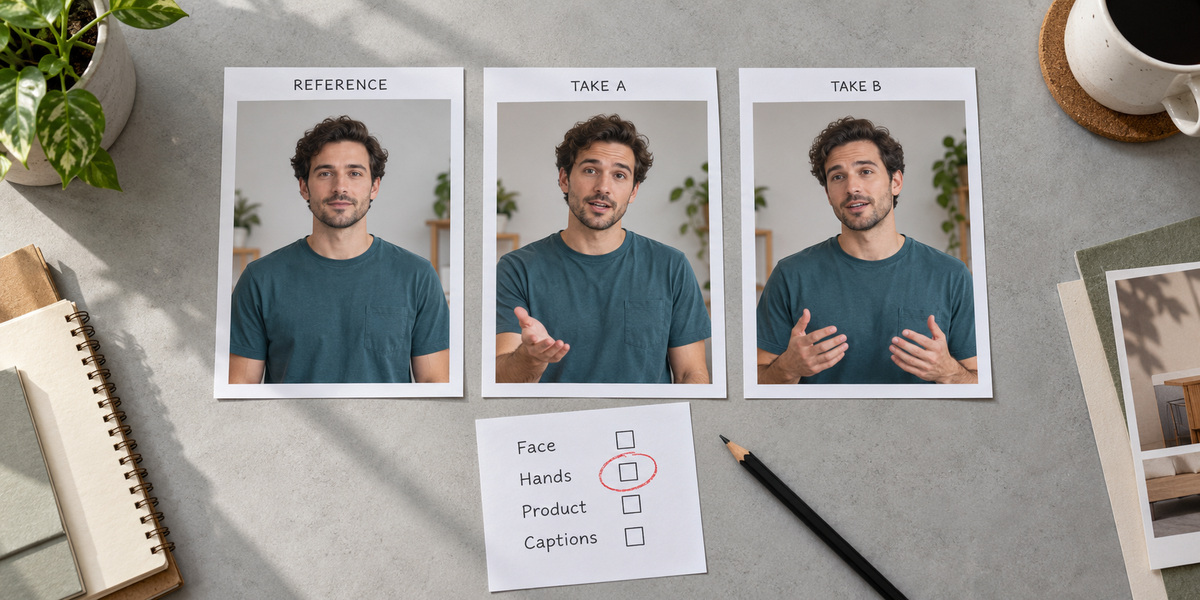
AllinOneDownloader original storyboard study for comparing generated character takes.
3. HeyGen: Start With a Script
Some ads do not need distinctive choreography or a carefully acted scene. They need a person to explain who the product is for, what it does, and what happens next.
HeyGen offers stock presenters, photo avatars and digital twins for script-led videos. Pick the presenter type, then check commercial-use eligibility and the current plan limits. A digital twin of a real person also needs their verified consent.
Give the presenter a small job: introduce the problem, explain one benefit, then lead into the product capture. Read those lines aloud before generating them. It should be clear what the viewer is being offered without an elaborate scene to explain it.
A presenter explaining the app is one thing. A presenter claiming to have used it is making a personal claim. Keep invented customer experiences out of the script. For U.S. campaigns, read the FTC guidance on AI avatars and testimonials. The distinction matters with real creators and brand partnerships as well: viewers may take a personal story literally.
4. Adobe Character Animator: Animate Your Illustration
A drawn spokesperson might already be on the packaging or website. There is a case for keeping that familiar face in the video, particularly when the brand has put work into its expressions and style. Here you begin with artwork.
Adobe Character Animator uses puppets that combine artwork and animation rigging. The webcam supplies a performance to drive the puppet. Starter can work with prepared or imported puppets; Pro provides the custom rigging workflow. The illustration and rig need attention before the character is ready to record.
Put the setup effort against the number of clips you expect to make. A planned series with the same host gives that work somewhere to go. A one-off spot may leave you with a carefully built character and no second job for it.
Write down the expressions and movements you want to reuse. Keep that reference beside the artwork, so the next person working on the character has something to follow. Then read the script without the animation: the offer ought to make sense there, too.
5. CapCut: Assemble the Ad
At this point you have a character clip. Lay it beside the product capture. There may be dead air between them, an awkward crop, or a sentence that arrives after the relevant screen has disappeared. These are the problems to sort out in the edit.
CapCut's online editor has tools for trimming, cropping, text overlays, captions and resizing. Use that timeline to put the pieces in order: character opening, product evidence, next step. The editor belongs at the assembly stage even if another service made the presenter or supplied the movement.
Play the export on a phone. Can you read the subtitle and still see the button it is describing? Keep both in view when adjusting the crop. For related controls, our coverage of Instagram's Edits app looks at transitions and audio. The final file needs this inspection whichever editor produced it.
Review the usage terms of music, templates, and other assets individually. Access to an editor does not automatically clear every included asset for every advertising use.
Change One Creative Variable at a Time
Once a first version is ready, choose what you want to learn from the next one. Two different opening gestures are one comparison. Two scripts read by the same presenter are another. Keep the offer, audience, destination and the rest of the edit consistent enough to make the comparison useful.
Give each source take, generated take and final export its own name. Leave a short note with a rejected version: the hand went wrong, the line was too long, or the crop hid the product. That note is more useful next week than another file called final.
Judge the campaign by the action it was meant to produce. A pile of new clips tells you how much you made; it doesn't tell you whether people understood the offer or took the next step. Use your own campaign evidence before deciding what to make more of.
Review the Export Before Release
Watch the full export, including the moments between the attractive frames. Check the face, hands, clothes and logos, then read the captions against the product capture. Open the destination page as well. The offer there should match the one you have just heard.
Keep permissions for the images, reference footage, voices and music with the project. YouArt's terms state that generated content belongs to you subject to its terms and content policy. That statement doesn't supply rights to somebody else's likeness or source footage. Check the destination platform's AI and commercial disclosure requirements before release.
Add an editor to finish the sequence. One workable route is enough for a first ad; the next version can answer the questions that the first one leaves you with.